| v16 |
16.0.49 (released on 9/9/2026) |
Critical Security Fix |
An unauthenticated Remote Code Execution vulnerability was discovered in survey passthrough routing. A malicious user could manipulate HTTP requests to access unintended endpoints from a survey context, potentially allowing remote code execution on the REDCap server. Exploitation requires knowledge of a valid survey hash but does not require authentication. Affects REDCap 13.3.0 and higher. |
| v16 |
16.0.49 (released on 9/9/2026) |
Major Security Fix |
A Stored Cross-site Scripting (XSS) vulnerability was identified in the BioPortal Ontology search feature where HTML and values were not properly escaped. Authenticated users with Project Setup & Design privileges could potentially exploit this vulnerability. Affects REDCap 6.7.0 and higher. |
| v16 |
16.0.49 (released on 9/9/2026) |
Major Security Fix |
A parameter-tampering vulnerability was discovered on REDCap Control Center configuration pages. Authenticated administrators could manipulate crafted requests to modify protected configuration values and potentially enable the Database Query Tool without proper authorization, increasing the risk of direct database access and sensitive data exposure. Affects all prior REDCap versions. |
| v16 |
16.0.44 (released on 7/28/2026) |
Major Bug Fix |
Certain REDCap special functions used in calculations or branching logic with blank-value comparisons could return incorrect results, potentially impacting calculation accuracy and logic execution. The issue was introduced in the previous release. |
| v16 |
16.0.43 (released on 7/27/2026) |
Major Bug Fix |
Certain REDCap special functions used in calculations or branching logic with blank-value comparisons could return incorrect results, potentially impacting calculation accuracy and logic execution. The issue was introduced in the previous release. |
| v16 |
16.0.42 (released on 7/24/2026) |
Major Bug Fix |
A JavaScript error on the Create Project page prevented users from creating new REDCap projects. This issue was introduced in the previous release. |
| v16 |
16.0.40 (released on 7/16/2026) |
Major Bug Fix |
Projects containing branching logic or calculated fields with JavaScript that included a dollar sign ($) character could cause calculations and branching logic to stop functioning and display errors to users. This issue was introduced in the previous release. |
| v16 |
16.0.39 (released on 2026-07-14) |
Critical Security Fix |
A Remote Code Execution vulnerability was found in which a malicious user who is logged in could potentially exploit it by manipulating any REDCap logic that is stored in a project (e.g., calculations, branching logic, data quality rule logic, report filter logic). If successfully exploited, this could allow the attacker to remotely execute arbitrary code on the REDCap server. Note: Only authenticated users are able to exploit this. This vulnerability exists in all versions of REDCap. |
| v16 |
16.0.39 (released on 2026-07-14) |
Major Security Fix |
An SQL Injection vulnerability was found on a MyCap-related page, in which a malicious user could potentially exploit it and execute arbitrary SQL commands on the database by manipulating an HTTP request in a specially-crafted way. This can only be exploited by authenticated users that have Project Design privileges in a MyCap-enabled project. Bug exists in REDCap 13.0.0 and higher. |
| v16 |
16.0.37 (released on 2026-07-02) |
Critical Security Fix |
Stored XSS vulnerability allowing malicious HTML/JavaScript injection through user input displayed throughout REDCap (field labels, survey instructions, reports, survey responses). Exploitable by authenticated users and survey participants. |
| v16 |
16.0.37 (released on 2026-07-02) |
Major Security Fix |
Unauthenticated Open Mail Relay vulnerability allowing attackers to send large volumes of custom emails from a survey-related page. |
| v16 |
16.0.37 (released on 2026-07-02) |
Major Security Fix |
File upload endpoint validation strengthened to prevent uploads to non-File Upload field types. |
| v16 |
16.0.37 (released on 2026-07-02) |
Major Bug Fix |
MyCap mobile app communication failure preventing existing participants from syncing with the server after a recent change. |
| v16 |
16.0.37 (released on 2026-07-02) |
Improvement |
MyCap participant experience automatically restored after upgrade without requiring users to rejoin projects. |
| v16 |
16.0.36 (released on 2026-06-25) |
Major Security Fix |
Participant impersonation vulnerability in MyCap API allowing a participant to potentially access another participant's data. |
| v16 |
16.0.36 (released on 2026-06-25) |
Major Bug Fix |
PDF viewer toolbar controls (zoom, paging, printing) disabled when viewing inline PDFs. |
| v16 |
16.0.36 (released on 2026-06-25) |
New Feature |
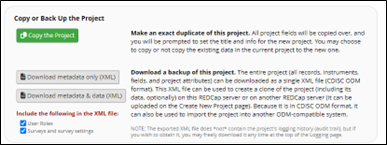
Added Copy Project option: "Log the copying of all records in the new project (may take much longer)" to reduce memory and processor utilization during large project copies. |
| v16 |
16.0.36 (released on 2026-06-25) |
Improvement |
Updated AI integration to support newer OpenAI models using max_completion_tokens. |
| v16 |
16.0.36 (released on 2026-06-25) |
Improvement |
Optimized branching logic JavaScript for improved page-load performance. |
| v16 |
16.0.35 (released on 2026-06-18) |
Major Security Fix |
Reflected XSS vulnerability on the Database Query Tool page exploitable through specially crafted URLs by authenticated administrators. |
| v16 |
16.0.35 (released on 2026-06-18) |
Major Bug Fix |
Form status value incorrectly populated during blank data imports, potentially changing form status icons. |
| v16 |
16.0.35 (released on 2026-06-18) |
Major Bug Fix |
Bulk Record Delete allowed deletion of data within locked records. |
| v16 |
16.0.35 (released on 2026-06-18) |
Improvement |
Improved handling of large clinical history background fetches and adjudication processing. |
| v16 |
16.0.35 (released on 2026-06-18) |
Improvement |
Fixed embedded PDF submission issues causing endless "Working..." states. |
| v16 |
16.0.31 (released on 2026-05-20) |
Major Bug Fix |
Form status imports incorrectly retained null values instead of defaulting to status "0". |
| v16 |
16.0.31 (released on 2026-05-20) |
Major Security Fix |
DAG users could retrieve Survey Access Codes, Survey Queue Links, or Survey Return Codes for records outside their Data Access Group. |
| v16 |
16.0.31 (released on 2026-05-20) |
Improvement |
Fixed branching logic recursion errors. |
| v16 |
16.0.30 (released on 2026-05-14) |
Major Bug Fix |
Form status field import process incorrectly retained blank values. |
| v16 |
16.0.30 (released on 2026-05-14) |
Major Bug Fix |
Some survey pages could fail unexpectedly with a fatal PHP error. |
| v16 |
16.0.29 (released on 2026-05-13) |
Major Security Fix |
CSV injection vulnerability that could potentially execute malicious code when downloaded CSV files are opened in Microsoft Excel. |
| v16 |
16.0.29 (released on 2026-05-13) |
Improvement |
Enhanced CSV file encoding validation to prevent truncation and import issues. |
| v16 |
16.0.28 (released on 2026-05-07) |
Major Security Fix |
JavaScript Injection Sinks vulnerability allowing authenticated users to inject malicious client-side code. |
| v16 |
16.0.28 (released on 2026-05-07) |
Major Bug Fix |
CDIS/CDP background fetch jobs repeatedly crashed because of memory exhaustion. |
| v16 |
16.0.28 (released on 2026-05-07) |
Major Bug Fix |
e-Consent responses could be overwritten, potentially nullifying participant consent under concurrent access conditions. |
| v16 |
16.0.28 (released on 2026-05-07) |
Major Security Fix |
DAG users could export Survey Links for records outside their Data Access Group. |
| v16 |
16.0.27 (released on 2026-05-01) |
Major Bug Fix |
Surveys and data entry forms incorrectly displayed branching logic errors and failed to properly hide fields. |
| v16 |
16.0.26 (released on 2026-04-30) |
Major Bug Fix |
User Roles failed to be created when creating projects from Project XML files. |
| v16 |
16.0.26 (released on 2026-04-30) |
Improvement |
Multiple CDIS/CDP/CDM performance, caching, adjudication, and FHIR fetch stability improvements. |
| v16 |
16 16.0.22 (released on 2026‑04‑09) |
Major security fix |
Stored XSS vulnerability on MyCap pages exploitable by users with Manage MyCap Participants rights (REDCap ≥ 13.0.0). |
| v16 |
16 16.0.22 (released on 2026‑04‑09) |
Major security fix |
SQL Injection vulnerability on MyCap pages exploitable by users with Project Design privileges (REDCap ≥ 13.0.0). |
| v16 |
16 16.0.20 (released on 2026‑03‑27) |
Major bug fix |
Non-admin users could not access projects when Access Control Groups were enabled due to fatal PHP errors. |
| v16 |
16.0.18 (released on 2026‑03‑19) |
Major bug fix |
PDF Snapshot functionality failed after renaming records. |
| v16 |
16.0.18 (released on 2026‑03‑19) |
Major bug fix |
Modifying user privileges could unintentionally remove Data Access Group assignment. |
| v16 |
16.0.17 (released on 2026‑03‑12) |
Major security fix |
Reflected XSS vulnerability on API Playground exploitable by authenticated API token holders (REDCap ≥ 6.9.0). |
| v16 |
16.0.17 (released on 2026‑03‑12) |
Major bug fix |
CDP/DDP background fetch workflows could stop before processing all selected data, leaving records incomplete. |
| v16 |
16.0.17 (released on 2026‑03‑12) |
Major bug fix |
Survey Form Status values could enter an inconsistent “limbo” state; upgrade SQL corrects affected responses. |
| v16 |
16.0.16( released on 2026‑03‑05) |
Improvement |
REDCap now blocks API and survey calls using versioned URLs to reduce exposure to older-version vulnerabilities. |
| v16 |
16.0.14(released on 2026-02-18) |
Major bug fix |
When a survey page is submitted with some required fields left empty, in certain scenarios the page might not be redisplayed with the Required Fields warning. Bug emerged in the previous version. |
| v16 |
16.0.12(released on 2026-02-05) |
Critical security fix |
A Remote Code Execution vulnerability was found in which a malicious user who is logged in could potentially exploit it by manipulating any REDCap logic that is saved via specific REDCap endpoints or is stored in a project (e.g., calculations, branching logic, data quality rule logic, report filter logic). Note: Only authenticated users are able to exploit this. This vulnerability exists in all versions of REDCap. |
| v16 |
16.0.11(released on 2026-01-30) |
Major bug fix |
The upgrade page would mistakenly not load due to a fatal PHP error when using PHP 8.4 or 8.5. |