ECC For Coordinators

The following information will help you navigate the Employee Compensation Compliance (ECC) system, distinguish the components of an effort statement, apply established ECC best practices, and complete project confirmations accurately and efficiently.


Logging In

To access the ECC system:

  1. Log in using your Cane ID and password
  2. Complete Duo authentication when prompted


Welcome Screen

The Welcome screen displays the current period of performance and certification period available in the ECC system.

  • Period of Performance
  • Certification Period


ECC Status Icons

The system uses icons to represent the status of effort and project statements.

  • Ready for Certification
  • Building (Not Ready for Certification)
  • Certified
  • Auto Approved
  • Transfer Pending
  • Not Certified / Re-opened

Effort Coordinator Work List

Navigation

  • Home
  • Certify
  • Manage
  • Reports
  • Administration
  • Links

Work List Tabs

  • Statements Awaiting Certification
  • Associated Faculty / PIs
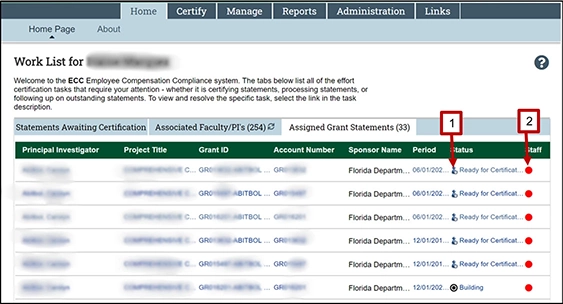
  • Assigned Grant Statements

Associated Faculty / PIs

This section displays faculty or principal investigators associated with effort statements you manage.

Note: Cost centers shown in black are not your responsibility.


Assigned Grant Statements

This view lists all grants assigned to you that require project confirmation.

  • Select the status icon to open the project confirmation
  • Select the staff icon to view personnel paid on the grant


Certify Tab

Effort Statements

Effort statements requiring certification or coordinator action appear here.

  • In Progress – loading for future certification
  • Historical – already certified

Hover Details

Hovering over a grant name displays commitment and PI information.


Payroll Reports

PI Payroll Report

Used to review salary paid and calculated effort by certification period.

  • Pay Period View – monthly pay by account
  • Account View – payments grouped by account

Printing Effort Certifications

  • Use mostly for manual certifications
  • Download before printing
  • Print in landscape orientation

Effort Certification Warnings

Statements with warning banners cannot be certified until issues such as default accounts or exception accounts are resolved.


Statement Detail Sections

  1. Notes
  2. Attachments
  3. Transactions
  4. Activity Log
  5. Certifiers & Approvers

Certifiers: Faculty / PI
Approvers: Effort Coordinators


Committed Effort

Committed effort represents effort submitted and approved by a sponsor for a project during its period of performance.

Calculation Example:

  • Total days in period of performance
  • Active award days during that period
  • PI effort percentage

Cost Center Dashboard

Provides a consolidated view of effort and project certifications within a department or cost center.


Project Certifications

Used to confirm effort worked by staff and faculty on sponsored projects.

  • Enter effort percentages as whole numbers
  • Use “Certify” to finalize

When to Certify Effort

Only certify effort after all payroll has been reviewed and any default accounts cleared.


Certifying Effort – Best Practices

  • Total effort between 99%–101% is acceptable
  • < 0.5% rounds to 0%
  • > 0.5% rounds up to 1%

ECC Update Schedule

Transaction Update Timing
Bi-Weekly Payroll Tuesday night after payday
Bi-Weekly Employee PAA Tuesday night after payday
Monthly Payroll Four working days after payday
Monthly Employee PAA Four working days after payday

Help Contacts

Name Phone
Maria Wadsworth (305) 284-4054
Lyssa McKenry (305) 284-4088


Top